Merge and Mine! Controls Guide
PC, mobile, console, and tablet tips for merging tools and mining the shaft.
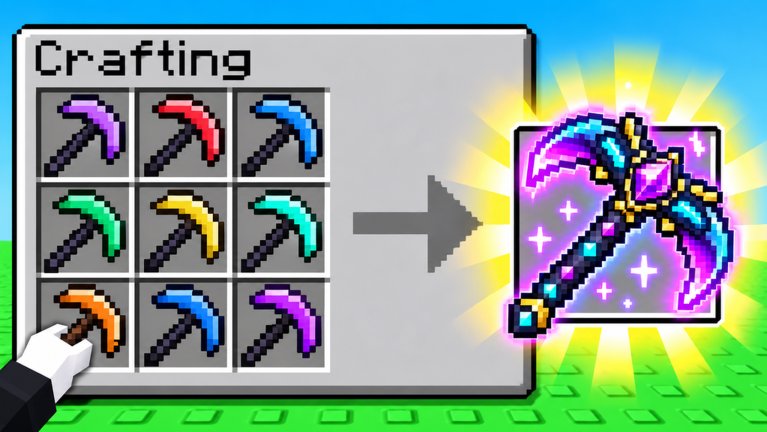
Merge and Mine! supports Desktop, Console, Mobile, and Tablet, with up to 8 players per server. The core actions are the same everywhere—select tools, merge matching ones into stronger pickaxes, drop them down the endless mine shaft, smash blocks, collect coin value from ores and gems, then navigate upgrade menus—but the way you tap, click, or press those actions changes by device.
This page is a practical controls and UI guide. Roblox input can vary slightly with device settings, touch sensitivity, and on-screen button layouts, so treat these as best-practice patterns rather than a claim that every icon never moves after a patch. After any big UI change, skim Updates.
Universal actions to master
Regardless of platform, get fluent at:
- Selecting tools on your merge board or inventory area
- Confirming a merge of matching tools
- Dropping / sending a pickaxe into the shaft
- Reading smash feedback so you know the dig is working
- Opening currency and upgrade panels to spend coins
- Backing out of confirmations—especially anything that looks like rebirth
If you can do those six cleanly, you can execute every guide on the Guides Hub.
Desktop (keyboard and mouse)
Desktop is usually the clearest place to learn the game because hover states and precise clicks reduce mis-merges.
Recommended desktop habits
- Use the mouse for merge selections; precision beats speed on day one.
- Click matches deliberately: select first tool, select partner, confirm merge if the UI asks.
- After a merge, pause half a second to verify the new pickaxe before dropping it.
- Keep the upgrade shop closed while merging so windows do not eat clicks.
- When dropping into the shaft, watch the tool travel so you learn how strong the smash looks.
- Use Esc / back UI affordances carefully around purchase and rebirth prompts.
Desktop players often multitask with this wiki on a second monitor. Keep How to Merge and Dig Deeper open while you practice the click rhythm.
Mobile and tablet (touch)
Touch devices are fully supported, but fat-finger mistakes are the enemy of clean merges.
Touch tips that save runs
- Hold the device so your thumbs cannot accidentally brush the drop or shop buttons while merging.
- Zoom your attention to one board region at a time; do not swipe wildly across the whole HUD.
- Complete merges before scrolling to other panels.
- If a merge fails because of a mis-tap, stop and reorient instead of rage-tapping.
- On tablets, place the device flat or at a stable angle for precise taps when the board is crowded.
- Lower distractions: notifications during a merge chain cause accidental presses.
Mobile sessions are where people most often misclick dangerous confirmations. If a prompt mentions reset or rebirth language, cancel and open the Rebirth Guide on a browser before continuing.
Console (controller)
Console play trades mouse precision for comfortable sitting-room sessions. The risk is overshooting UI focus while cycling through tools.
Controller habits
- Move focus slowly across matching tools; rushing the stick causes wrong selections.
- Learn which face button confirms versus cancels in Roblox UI on your platform (PlayStation, Xbox, etc.).
- When a shop or rebirth-looking modal appears, identify cancel before confirm.
- Use shorter dig sessions at first so you build muscle memory for merge → drop → shop.
- If stick aim feels slippery on dense boards, pause between actions.
Console players should still follow the same strategic guides as PC players: merges first, depth second, rebirth almost never until researched.
Reading the mine UI while you dig
The shaft is the spectacle. Train your eyes to notice:
- How far the pickaxe travels before the dig fizzles
- Whether blocks smash cleanly or resist
- Ore and gem breaks that signal valuable feedback
- Coin changes after a drop resolves
Those signals tell you whether your next action is another merge, another drop, or a shop visit. They matter more than staring at other players in the 8-person server.
UI hygiene for better merges
- Keep temporary popups dismissed before starting a merge chain.
- Do not open codes, shops, and rebirth screens in a stack of overlapping modals.
- Redeem Codes at session start or during a planned break—not mid-merge.
- After buying an unlock, return to the board and look for new matching opportunities before dumping tools.
- When comparing upgrades, jot priorities from the pickaxe tier list so you are not shopping emotionally.
Accessibility and comfort tips
- On mobile, increase system font size only if it does not break button hitboxes you rely on.
- Take breaks; incremental games invite long sessions where misclicks rise with fatigue.
- Lower music slightly if audio cues help you hear UI confirms.
- If color-heavy tools are hard to tell apart, rely on shape/tier labels and merge highlights the game provides rather than guessing.
Common control mistakes (and fixes)
Mistake: Dropping the wrong tool
Fix: After each merge, visually confirm the new pickaxe is selected. Desktop users can hover; touch users should pause before the drop tap.
Mistake: Buying while trying to merge
Fix: Close the shop. Merges need a clean board focus. Spend coins in batches as taught in Dig Deeper.
Mistake: Confirming rebirth by accident
Fix: Treat any reset modal as unsafe until proven otherwise. Cancel, then read the Rebirth Guide. Community warnings exist for a reason.
Mistake: Ignoring platform differences after a patch
Fix: Check Updates and re-learn button positions if the HUD moved.
Suggested practice routine (10 minutes)
- Join on your main device.
- Perform three careful merges without dropping anything.
- Drop one strong pickaxe and watch the entire smash sequence.
- Open the shop, buy nothing, close it—practice cancel/back.
- Redeem or review Codes flow once without rushing.
- Repeat on a second device type if you switch between phone and PC often.
This routine builds safe muscle memory before you chase deep shaft records.
How controls support the rest of the wiki
- Getting Started — puts these inputs into a first-session plan
- How to Merge — why accurate merges matter
- Dig Deeper — when to stop tapping and start spending
- Rebirth Guide — what never to confirm casually
- Tier List / pickaxes — what to buy when the shop is open
- Players / Scripts — optional hubs once controls feel natural
Clean inputs make the fantasy of Merge and Mine! feel fair: matching tools combine, stronger pickaxes fall, blocks shatter, coins rise, and new depths unlock. Sloppy inputs make the same game feel unfair. Master the device in your hands, then let the strategy guides take over.
Frequently Asked Questions
Quick answers to the most common Merge and Mine questions.
What platforms does Merge and Mine! support?
Desktop, Console, Mobile, and Tablet. Servers support up to 8 players. Core actions are the same; only input methods change.
What are the most important actions to practice?
Selecting tools, confirming merges, dropping pickaxes into the shaft, reading smash feedback, spending coins in upgrade menus, and canceling dangerous confirmations.
How do I avoid misclicks on mobile?
Stabilize your grip, merge before opening other panels, pause before drops, and never rush through rebirth or purchase confirmations.
I almost confirmed rebirth by accident. What now?
Cancel immediately and read the Rebirth Guide. Community creators warn against casual rebirth because resets can wipe progress.
Which guide should I use with this controls page?
Pair it with Getting Started for your first session, How to Merge for board play, and Dig Deeper for when to spend coins after a successful dig.